The Best Linux Media Server Software 2023 (Tested & Compared)
Have you been looking for the best Linux Media Server Software? There are quite many of…

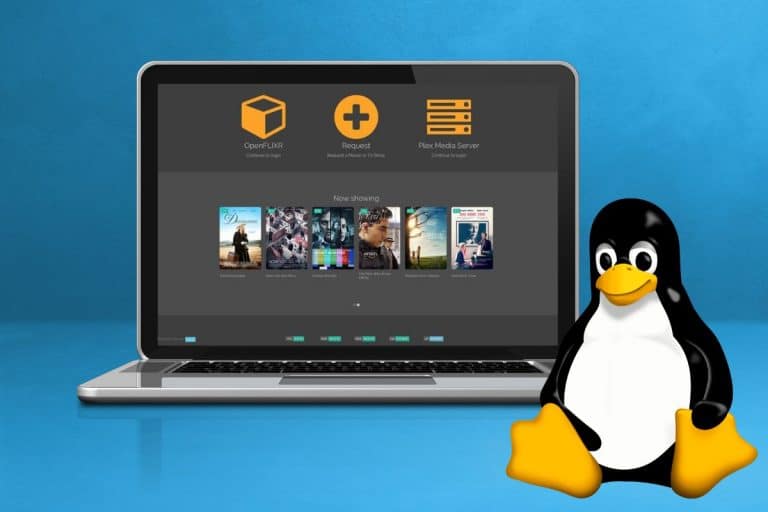
Have you been looking for the best Linux Media Server Software? There are quite many of…
![10 Best Linux Distros for Programmers in 2023 [Ranked]](http://www.linuxhaxor.net/wp-content/uploads/2023/04/Linux-Distros-for-Programmers-768x512.jpg)
Are you a beginner or an experienced developer looking for the best Linux distro for your…

Are you looking for Linux distros to use in setting up your server? We have done…

This is for you if, like me, you are particularly concerned about the security of the…

Are you an expert in cyber security, an ethical hacker, or a system security analyst looking…
![How to Install XRDP In Ubuntu [Step Guide]](http://www.linuxhaxor.net/wp-content/uploads/2024/01/How-to-Install-XRDP-In-Ubuntu-768x512.jpg)
To allow seamless remote access, see the detailed steps for installing XRDP (X Remote Desktop Protocol)…
![How to Install MongoDB on Ubuntu 22.04 [Steps Guide]](http://www.linuxhaxor.net/wp-content/uploads/2024/01/Install-MongoDB-on-Ubuntu-22.04-768x512.jpg)
Explore MongoDB, the popular open-source NoSQL database known for its flexibility and scalability. Ideal for modern…
HTTP requests can temporarily fail, so it’s essential to handle those to ensure reliability. In this…
Web scraping in R is one of the most popular methods data scientists use to extract…
Let me ask you: Just how vital is data to your business strategy nowadays? What about…
Web scraping allows you to extract large amounts of data from websites automatically. However, many sites…
Have you ever had your web scrapers blocked when attempting to extract data from certain sites?…
Wondering how to easily extract the exact data you need from a website? Look no further…
If you scrape the web, odds are you’ve painfully experienced the ‘Access Denied’ errors from sites…
Captchas blocks automated scraping in its tracks. A 2021 survey found over 60% of leading websites…